
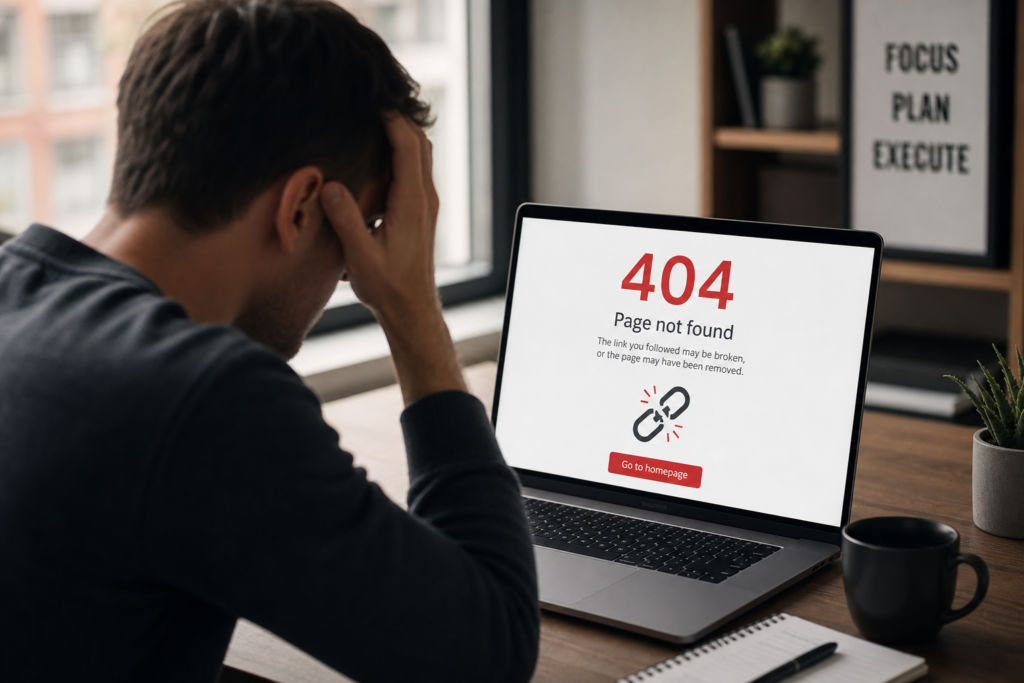
Learn what causes a 404 Page Not Found error, how to fix it, and how to prevent broken links from affecting your website visitors and SEO.
What Does a 404 Page Not Found Error Mean?
A 404 Page Not Found error means that your web browser successfully connected to the website, but the specific page you’re trying to access cannot be found.
In simple terms, the page either no longer exists, has been moved, or the URL is incorrect.
While seeing a 404 error can be frustrating, it’s one of the most common website issues and is often easy to resolve.
Common Causes of a 404 Error
Here are some of the most common reasons you may encounter a 404 error:
1. The Page Was Deleted
If a page has been removed from your website without creating a redirect, visitors trying to access the old URL will see a 404 error.
Example: A product page is deleted after an item is discontinued.
2. The URL Was Changed
Changing a page’s URL without updating internal links or setting up a redirect can result in broken links.
Example:
Old URL:
yourwebsite.com/servicesNew URL:
yourwebsite.com/our-servicesAnyone visiting the old address will receive a 404 error unless a redirect is in place.
3. The URL Was Typed Incorrectly
Even a small typo can lead to a missing page.
For example:
yourwebsite.com/contcatinstead of
yourwebsite.com/contactAlways double-check the spelling of the web address.
4. Broken Links
Links from your website or another website may point to pages that no longer exist.
Broken links create a poor user experience and may negatively impact your website’s SEO over time.
5. WordPress Permalink Issues
If you’re using WordPress, changes to permalink settings or certain plugin updates can sometimes cause pages to return 404 errors.
Fortunately, this is often resolved by refreshing your permalink settings.
6. Website Migration or Redesign
If your website has recently been moved to a new server or redesigned, some pages may have been relocated without proper redirects.
This is a common cause of multiple 404 errors after launching a new website.
How to Fix a 404 Page Not Found Error
Try these troubleshooting steps:
✔ Check the URL
Make sure the web address is spelled correctly.
A single missing letter or extra character can result in a 404 error.
✔ Refresh the Page
Sometimes the issue is temporary.
Press Ctrl + F5 (Windows) or Cmd + Shift + R (Mac) to perform a hard refresh.
✔ Restore or Republish the Page
If the page was accidentally deleted, restoring or recreating it may solve the problem.
✔ Create a 301 Redirect
If the page has been moved to a new location, create a 301 redirect from the old URL to the new one.
This helps visitors reach the correct page while preserving SEO value.
✔ Refresh WordPress Permalinks
If you’re using WordPress:
- Log in to your dashboard.
- Go to Settings → Permalinks.
- Click Save Changes without changing any settings.
This refreshes your permalink structure and often resolves many 404 errors.
✔ Fix Broken Links
Use a website audit or broken link checker to identify links that point to missing pages.
Update or remove those links to improve the user experience.
How to Prevent Future 404 Errors
You can reduce the chances of 404 errors by following these best practices:
- Avoid changing page URLs unless necessary.
- Set up 301 redirects whenever you move or rename pages.
- Regularly check for broken links.
- Keep your website updated.
- Test your website after redesigns or migrations.
- Monitor Google Search Console for crawl errors.
Does a 404 Error Hurt SEO?
A few 404 errors are completely normal and won’t significantly affect your website.
However, a large number of broken pages or important pages returning 404 errors can:
- Create a poor user experience
- Reduce search engine crawl efficiency
- Cause loss of search rankings if valuable pages disappear
- Decrease visitor trust
Monitoring and fixing broken links regularly helps keep your website healthy.
Need Help?
If your website continues to display 404 errors after trying the steps above, our support team is here to help.
We’ll identify the cause, restore missing pages if possible, configure redirects, and ensure your visitors can access the content they need.
Need step-by-step instructions to fix it? Visit our Help Center for easy troubleshooting guides and website support tips.