
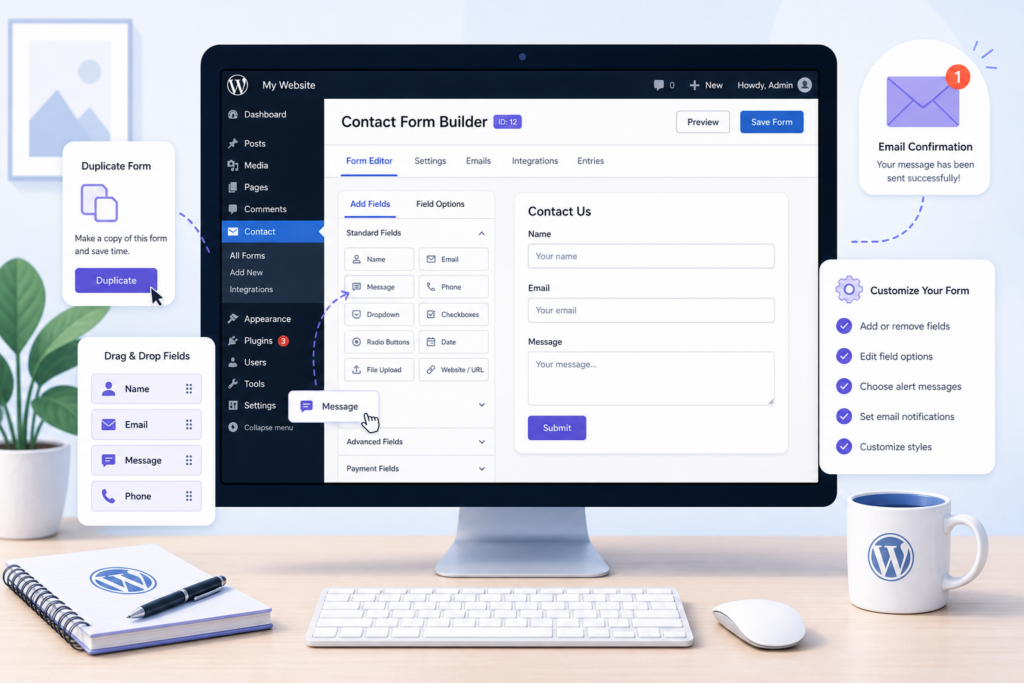
How Do I Create a New Contact Form in WordPress?
A contact form is one of the most important features on any website. It gives visitors a quick and professional way to reach you without exposing your email address to spam.
The good news? Creating a contact form in WordPress is easier than you might think.
Step 1: Install a Contact Form Plugin
If your website doesn’t already have one, install a contact form plugin. Some popular options include:
- WPForms
- Contact Form 7
- Ninja Forms
- Formidable Forms
Go to Plugins → Add New, search for your preferred plugin, then click Install and Activate.
Step 2: Create a New Form
Once the plugin is active:
- Open the plugin from your WordPress dashboard.
- Click Add New or Create Form.
- Choose a blank form or start with a pre-built template.
Most plugins include templates like:
- Simple Contact Form
- Newsletter Signup
- Quote Request
- Support Request
Templates save time and require very little customization.
Step 3: Customize Your Form
Add or remove fields based on what information you need.
Common fields include:
- Name
- Email Address
- Phone Number
- Subject
- Message
Some plugins also let you add:
- File uploads
- Checkboxes
- Dropdown menus
- CAPTCHA spam protection
Keep your form as short as possible to encourage more submissions.
Step 4: Configure Email Notifications
Tell WordPress where to send completed forms.
Usually you’ll configure:
- Notification email address
- Email subject
- Confirmation message shown after submission
Double-check your email address to ensure you receive inquiries.
Step 5: Save Your Form
After making your changes, click Save.
Your form is now ready to use.
Step 6: Add the Form to a Page
Most plugins provide a shortcode or WordPress block.
Simply:
- Open your Contact page.
- Add the form block or paste the shortcode.
- Update or publish the page.
Now visitors can contact you directly from your website.
Test Your Contact Form
Before announcing your website is ready, submit a test message yourself.
Make sure:
- The confirmation message appears.
- The email arrives in your inbox.
- All fields display correctly.
- The form works on mobile devices.
Testing helps catch problems before your visitors do.
How Do I Duplicate an Existing Form in WordPress?
If you’ve already created a contact form that works perfectly, there’s no need to build another one from scratch.
Duplicating an existing form saves time and keeps your forms consistent.
Why Duplicate a Form?
Duplicating a form is useful when you want to:
- Create similar contact forms for different pages
- Make edits without affecting the original form
- Build event registration forms using an existing template
- Create multiple versions for different departments
Instead of starting over, simply copy what you’ve already built.
Step 1: Open Your Form Plugin
Log into your WordPress dashboard and open your contact form plugin.
You’ll see a list of your existing forms.
Step 2: Find the Form You Want to Copy
Locate the form you’d like to duplicate.
Many popular form plugins include a Duplicate, Clone, or Copy option next to each form.
Click it to create an identical version.
Step 3: Rename the New Form
To avoid confusion, give your duplicated form a new name.
Examples:
- Contact Form – Sales
- Contact Form – Support
- Contact Form – Events
- Website Quote Request
A descriptive name makes future management much easier.
Step 4: Make Your Changes
Now edit only the fields you want to change.
You might update:
- Form title
- Questions
- Notification email
- Confirmation message
- Required fields
Everything else can remain the same.
Step 5: Save the Form
Once you’re finished editing, click Save.
Your duplicated form is now ready to use.
Add the New Form to a Page
Copy the shortcode or insert the form block into the page where you’d like it to appear.
Publish or update the page.
Visitors will now see your new version of the form.
Always Test Before Publishing
Submit a test entry to verify:
- Emails are delivered correctly.
- The right confirmation message appears.
- Required fields work.
- Everything looks good on desktop and mobile.
A quick test can prevent missed customer inquiries.
Final Thoughts
Duplicating an existing WordPress form is one of the easiest ways to save time while keeping your website organized. Instead of rebuilding forms from scratch, you can create new versions in just a few clicks and customize only what you need.
If you need assistance creating, duplicating, or managing WordPress forms, our support team is here to help.