
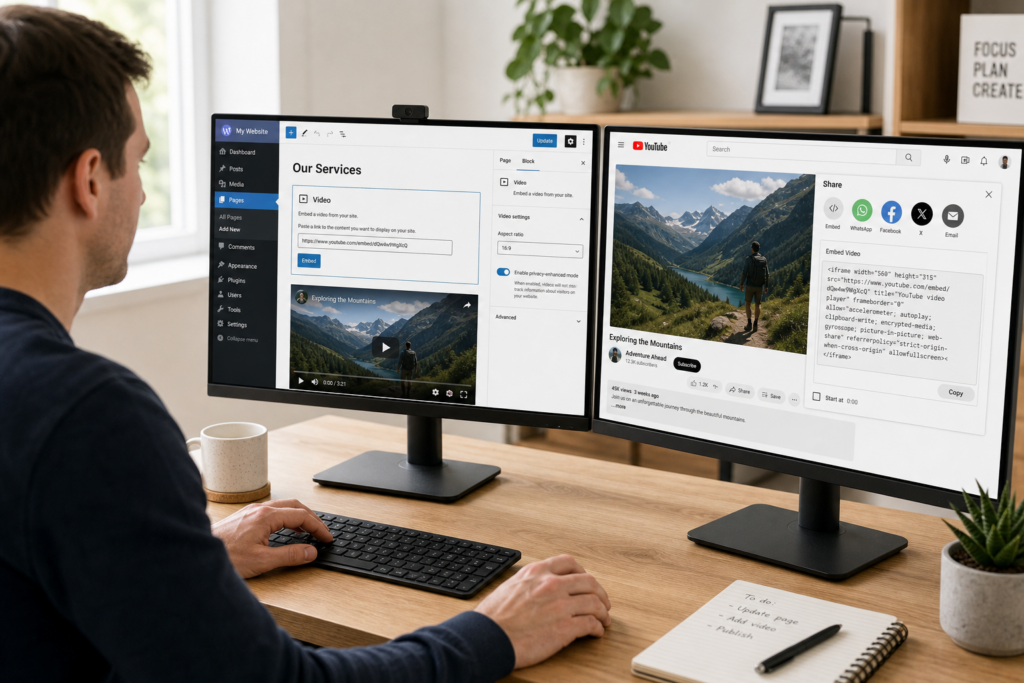
Embedding a YouTube video on your website is a great way to make your content more engaging. Whether you’re sharing a product demonstration, customer testimonial, tutorial, or promotional video, adding a YouTube video can help visitors stay on your site longer and better understand your message.
This guide will walk you through the process of embedding a YouTube video on your website.
Step 1: Open Your YouTube Video
Go to YouTube and open the video you want to display on your website.
Tip: Make sure the video’s privacy settings allow embedding. Videos set to private cannot be embedded on external websites.
Step 2: Copy the Embed Code
- Click the Share button below the video.
- Select Embed.
- You will see an HTML iframe code.
- Click Copy to copy the entire code.
It will look similar to this:
<iframe width="560" height="315"
src="https://www.youtube.com/embed/VIDEO_ID"
title="YouTube video player"
frameborder="0"
allowfullscreen>
</iframe>
Step 3: Edit Your Website Page
Open your website editor or Content Management System (CMS) and navigate to the page where you want the video to appear.
Examples include:
- Home page
- About Us page
- Services page
- Blog post
- Landing page
Step 4: Paste the Embed Code
Depending on your website platform:
Option A: HTML Editor
Switch to the HTML or Code view and paste the iframe code where you want the video to appear.
Option B: Embed Block
Many website builders such as WordPress, Wix, Squarespace, and other page builders have an Embed, Custom HTML, or Code block.
Simply:
- Add an Embed block.
- Paste the iframe code.
- Save your changes.
Step 5: Preview Your Website
Before publishing, preview the page to ensure:
- The video displays correctly.
- It plays without errors.
- It looks good on desktop and mobile devices.
If everything looks correct, publish or update your page.
Troubleshooting Common Issues
The video doesn’t appear.
Check that:
- The embed code was copied completely.
- The video is public or unlisted.
- Your website editor supports HTML embeds.
The video is too large or too small.
Adjust the video’s width and height settings in your website builder or edit the iframe dimensions if you’re using HTML.
Many modern website builders also provide responsive video blocks that automatically resize for different screen sizes.
I see a blank space instead of the video.
Possible causes include:
- The browser is blocking embedded content.
- The video owner has disabled embedding.
- An ad blocker or browser extension is interfering.
Try viewing the page in another browser or an incognito/private window.
The video doesn’t play on mobile devices.
Most modern websites automatically support responsive video embeds. If your video doesn’t resize correctly, check whether your theme or page builder supports responsive embeds.
Best Practices
To create a better experience for your visitors:
- Choose videos that are relevant to the page content.
- Keep videos concise and informative.
- Place videos near related text or products.
- Include a short description explaining what viewers will learn.
- Test the page on desktop, tablet, and mobile devices before publishing.
Frequently Asked Questions
Can I upload a video directly to my website instead of YouTube?
Yes, but hosting videos directly on your website can consume significant storage and bandwidth. Using YouTube is often the better option because it provides faster streaming and reduces the load on your web server.
Can I autoplay my YouTube video?
Some website platforms allow autoplay, but many browsers restrict videos from autoplaying with sound. For the best user experience, let visitors choose when to play the video.
Will embedding a YouTube video slow down my website?
Embedding a few YouTube videos generally has minimal impact on performance. However, placing many videos on a single page may increase loading times.
Need More Help?
If you’re having trouble embedding a YouTube video or it isn’t displaying correctly, our support team is here to help. We’ll be happy to assist you.